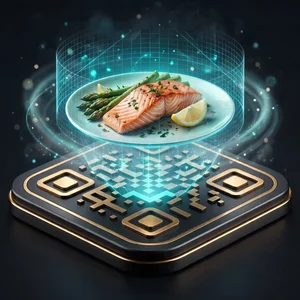

How ART Works: From Fresh Plate to 3D Tabletop
Three simple steps to get your menu live, then add 3D dishes using just your phone.
Getting started
From first message to QR codes on your tables.
Pick a plan, we register you
Choose your plan, then message us on WhatsApp or email with the plan name, your name, restaurant name, email address and phone number. Our team creates your ART account on that plan and sends you your login details.
- Pick the plan that suits you
- We create your account for you
- We will send you the login details
Upload your menu, our AI does the typing
No long data entry. Upload photos of your current menu, and our AI creates your food categories and dish entries with their names and details. It also adds a default picture for each dish, which you can change any time.
- Add a real photo or a short 4-second video for any dish
- Change the default dish pictures whenever you like
- Want dishes in 3D? The steps are just below
A QR code for every table or room
Create as many QR codes as you need, one for each table or hotel room. Print them yourself, or ask us to print them for you.
- Unlimited QR codes
- One for each table or hotel room
- We can print them for you (printing is charged separately)
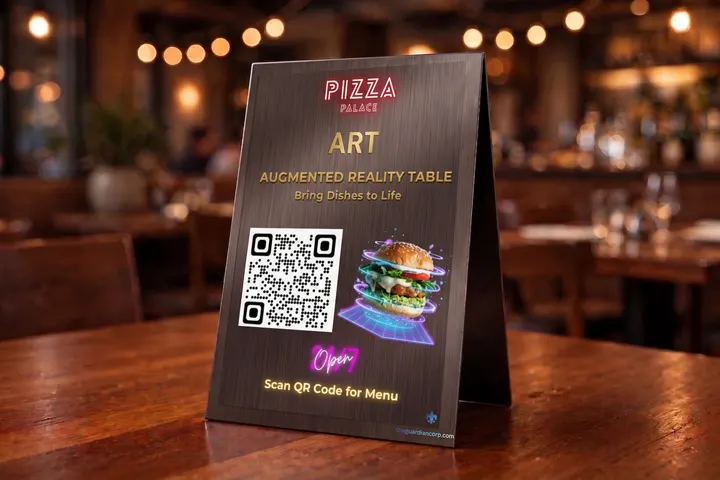
Adding 3D dishes to your menu
No 3D software and no agency. Scan the dish with KIRI Engine on your phone, upload it, and we do the rest.
Scan the dish with your phone
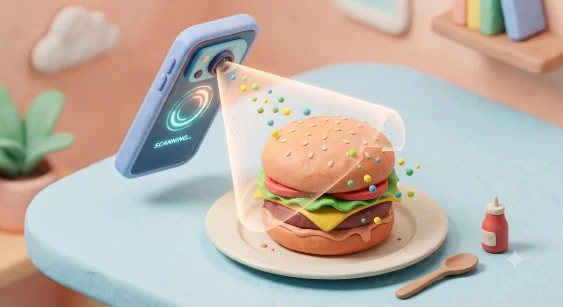
Put the plated dish on a table and walk slowly around it with the KIRI Engine app open. It takes a couple of minutes, and the app saves a 3D scan of the dish.
- Use a plain, non-shiny plate
- Soft daylight gives the most natural colours
- Keep the plate still while you walk around it
Upload it to your ART dashboard
Log in to your ART dashboard and upload the scan. Then add the dish name, price, description and any dietary labels.
- Your scans are stored safely
- Sort dishes into your menu categories
- Edit any dish whenever you like
We turn it into a 3D dish
We convert your scan into a small, phone-friendly 3D model that shows the dish at its real size on the table.
- Loads quickly on mobile data
- Shown at the real size of the plate
- No 3D artist or agency fees
Put the QR codes on your tables
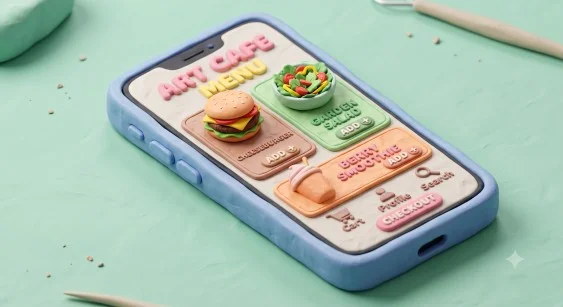
Place the QR codes on your tables. Guests scan with their iPhone or Android camera and your menu opens in their browser, with no app to download.
- Works in Safari and Chrome
- Guests tap 'View in AR' to see the dish on the table
- 0% commission on every order
Tips for a Good Scan
A good scan takes a couple of minutes. These tips help it come out right first time.
- ·Firm, textured food: burgers, samosas, kebabs, tandoori platters, biryani, pizzas and cakes.
- ·Plain, non-shiny plates: matte plates work better than glossy ones.
- ·A little garnish: coriander, sesame seeds or a lemon wedge give the app detail to lock on to.
- ·Soft daylight: even light from a window gives natural colours and no harsh shadows.
- ·Shiny or runny food: soups, thin gravies and glossy glazes are hard for the app to read.
- ·Harsh sunlight: strong direct sun leaves dark shadows on the 3D dish.
- ·Clear glasses: drinks in clear glass don’t scan well.
- ·Moving the plate: keep the dish still and walk around it with the phone.
A Few Technical Details
For anyone who wants to know what happens behind the scenes.
3D dishes that load fast on mobile data▼
A raw phone scan is a very large file. We shrink every dish so it stays small and opens quickly on a normal 4G connection.
Works on iPhone and Android, with no app▼
On iPhone, the dish opens in Apple’s built-in AR viewer. On Android, it opens in Google’s built-in AR viewer (Scene Viewer). Either way, guests see the dish at real size on their table.
Your scans stay yours▼
We store your scans and 3D dishes securely, and they remain your property.